You set your own rates
Per page, black & white or colour, single or double sided, A4 or A3. Change them whenever you like — jobs already quoted keep their original price.
 PrintOk
Put a QR code on your counter. Customers scan it, upload their file, pay on their own phone, and collect the printout. No new hardware. No one queuing to explain what they need.
Every screen your customer sees, from scanning the QR on your counter to collecting the printout. No app to install and no account to make.
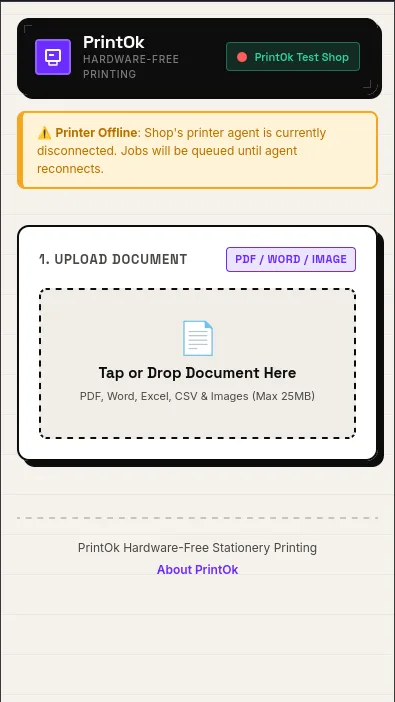
Your QR opens your shop's page in their browser, with your shop's name at the top. A PDF or a photo, up to 25MB.
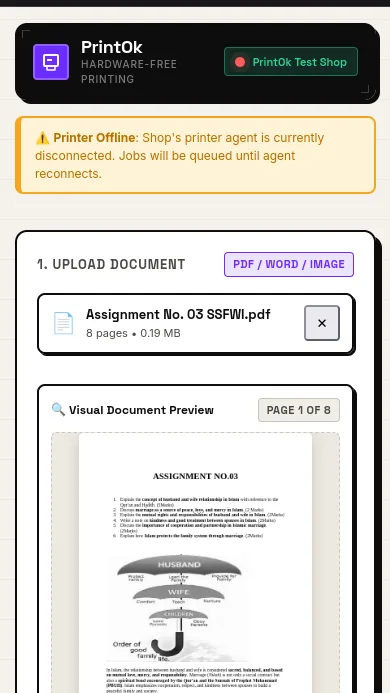
They see the pages rendered, not just a filename — so the wrong file gets caught before anyone pays for it or you print it.
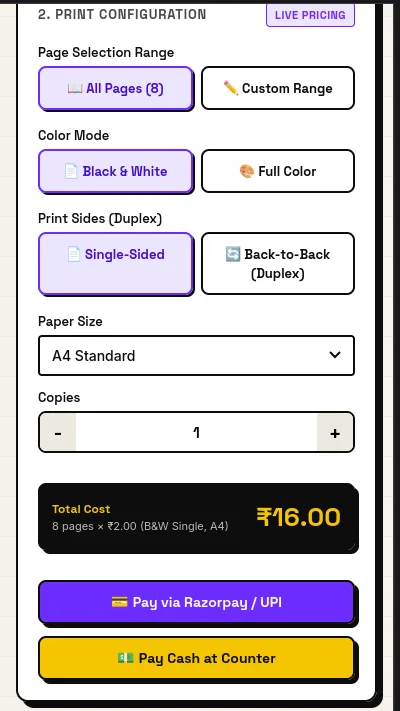
Copies, colour, single or double sided, a page range. The total comes from your rate card and updates as they choose.
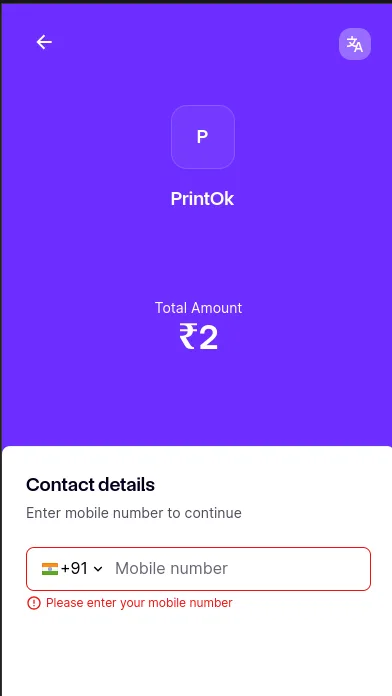
Checkout runs on their handset, so nobody queues at your counter to pay. Cash at the counter stays an option if you want it.
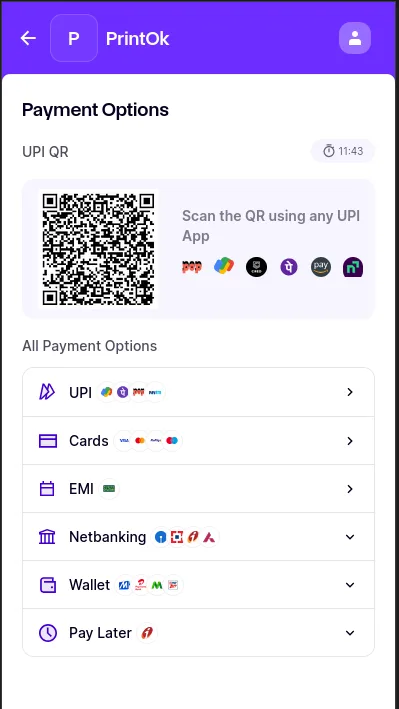
UPI, cards, netbanking and wallets. Before paying, the customer sees your shop named as the one printing their order, and that PrintOk adds no fee to their bill. Online payments are received by PrintOk and paid out to you — see the Terms.
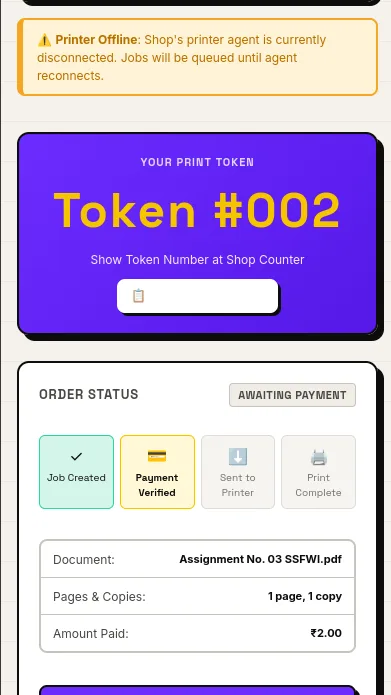
The job reaches your printer and the status moves as it prints. They ask for a number at the counter, not for help with a file.
Three pieces, and only one of them sits in your shop.
They scan the QR on your counter, pick copies, colour and pages, and see the price before paying a rupee.
Counts the pages from the file itself, prices the job from your rates, collects the customer's payment on your behalf and holds the queue.
A small program collects paid jobs and sends them to the printer you already own. Nothing else changes.
How a print job goes today, versus with PrintOk on the counter.
| At the counter | Today | With PrintOk |
|---|---|---|
| Getting the file | WhatsApp, email or a pen drive, then find it on your PC | Arrives in your queue, already priced |
| Explaining the job | Customer describes copies, colour and pages out loud | They choose it themselves before paying |
| Counting pages | You open the file and count | Counted automatically, and verified |
| Taking money | Cash or a UPI screenshot you have to trust | Paid before printing, or approved by you |
| Busy periods | A queue of people waiting to be served one by one | Jobs stack up in order; you just collect them |
| Customer files | Sit in Downloads until someone clears them | Deleted automatically once the job is done |
| Something goes wrong | You find out when the customer complains | Flagged on your dashboard with what to do |
| Upfront cost | New kiosk hardware, if you go that route | Nothing — your printer, your PC |
Per page, black & white or colour, single or double sided, A4 or A3. Change them whenever you like — jobs already quoted keep their original price.
The customer picks copies, colour and page range themselves. You see a token number and a finished printout.
Files are deleted once the job is done. Nothing sits on your PC, and there's a record of every deletion.
Payment and printing are tracked separately, so a payment that didn't print is visible rather than silently lost.
If a PC dies mid-job, the job comes back to the queue — unless it might already have printed, in which case you're asked instead of paper being wasted.
Each connected PC gets its own key. Remove one without disturbing the others.
Start free. Pay only when you're earning.
No. PrintOk works with the printer you already have, through a small program on any Windows PC connected to it.
Jobs wait in the queue. When the PC comes back it reconnects and picks them up. A job that was mid-print when the PC died is held for you to confirm rather than reprinted automatically.
PDFs and images (JPG, PNG, WebP). Page count is verified on our side, so the price reflects what actually prints. Word, Excel and PowerPoint files are not accepted, because their page count cannot be measured before printing — customers export them as PDF first. Customers can also scan a paper document with their phone's camera on the order page.
On their own phone, before printing. You can also approve a job manually if someone pays cash at the counter.
They're removed once the job reaches a final state, both from our storage and from your PC.
Yes. Each printer gets its own QR code and its own queue.
Questions about connecting your printer, pricing, or whether your model is supported.
Listing your shop is free and takes a couple of minutes.
List Your Shop